
Veeam released Veeam Backup for Microsoft 365 v8.6 on September 14, 2026, which included new features and Enhancements. It also fixed some bugs.
The detailed information is below:
1.Login to Veeam Backup for the Microsoft 365 Manager server.
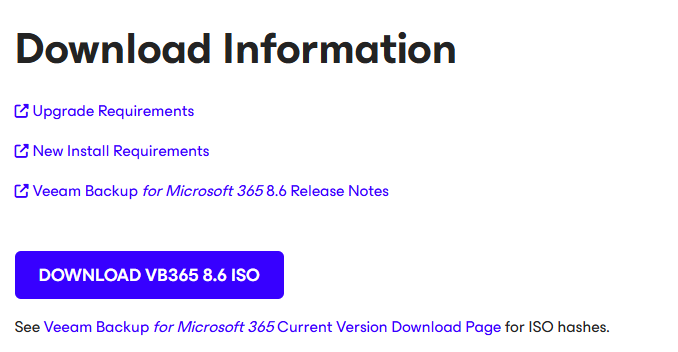
2.Sign in to your Veeam account and download the Veeam Backup for Microsoft 365 v8.6 ISO image.
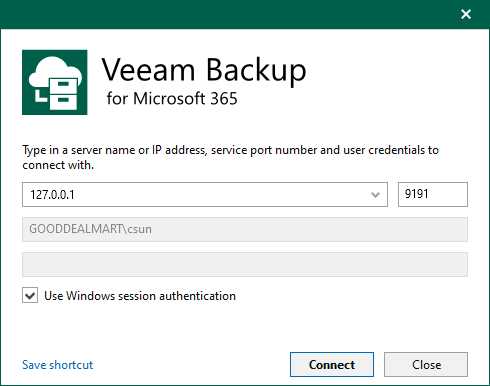
3.Open Veeam Backup for Microsoft 365 console.
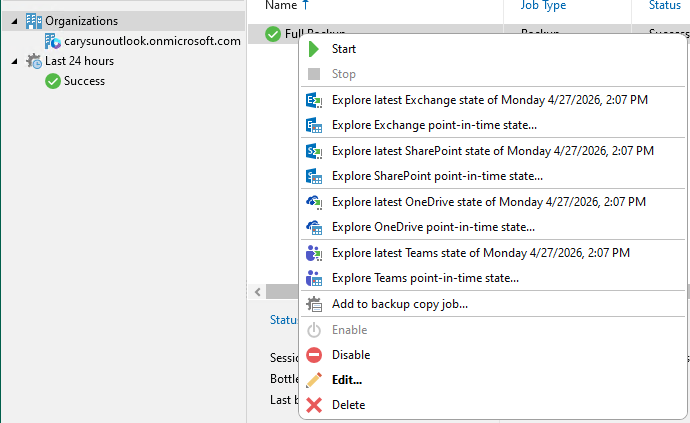
4.Ensure all jobs are successful, disable them and close the console.
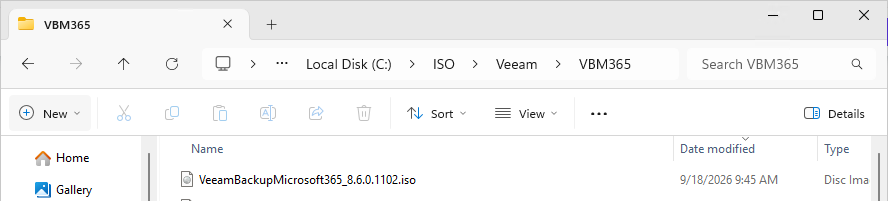
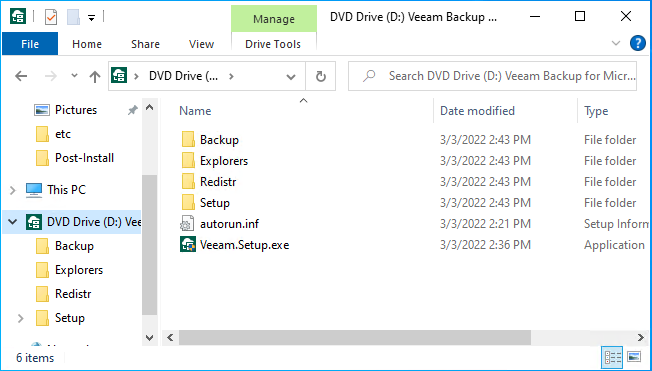
5.Mount Veeam Backup for Microsoft 365 v8.6 (VeeamBackupMicrosoft365_8.6.0.1102.iso) ISO image file.
6.Double-click Veeam.Setup.exe.
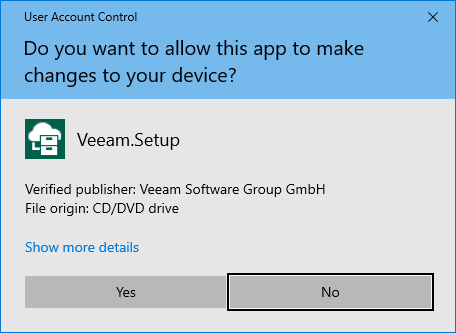
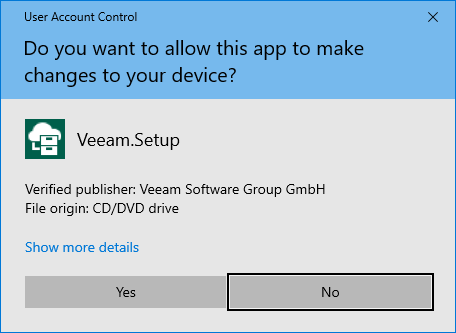
7.Click Yes on the User Account Control page.
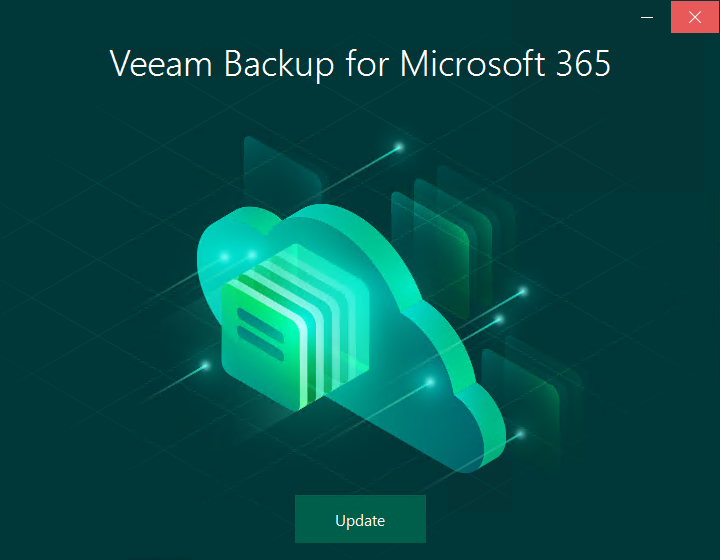
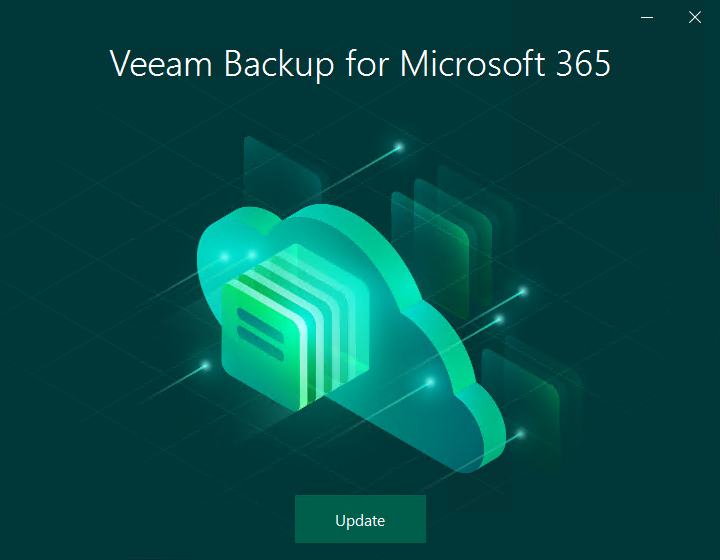
8.Click Update on the Veeam Backup for Microsoft 365 page.
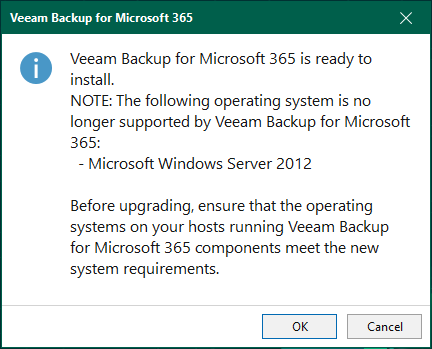
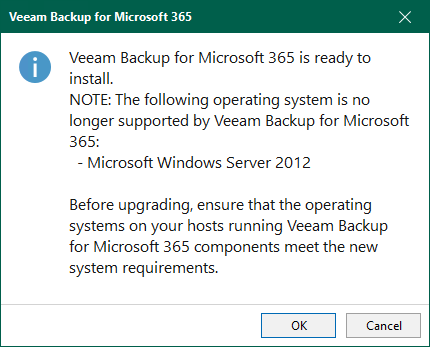
9.Ensure you don’t have any unsupported operating system and click OK.
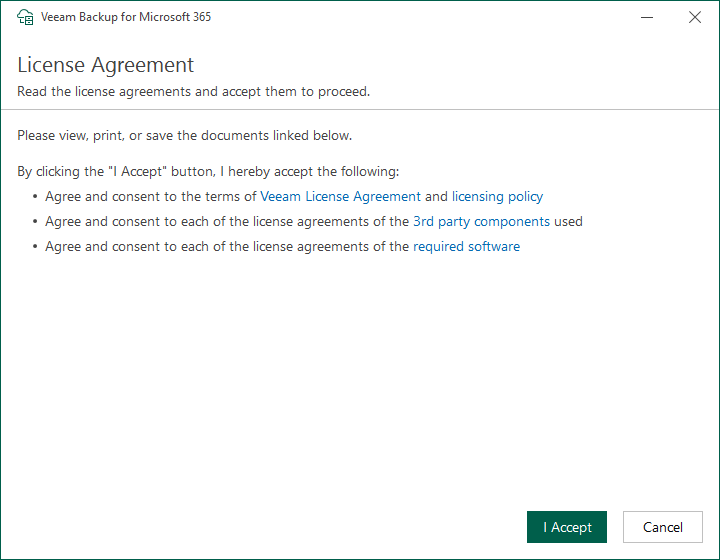
10.Click I Accept on the License Agreement page.
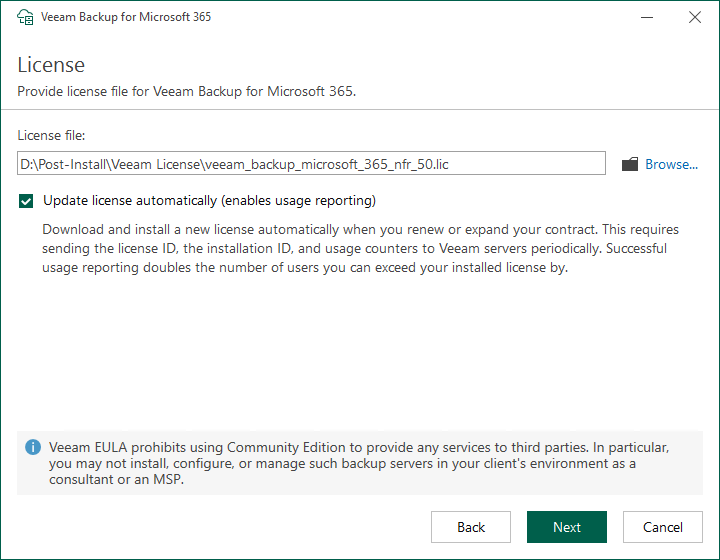
11.Click Next on the License page.
Note:
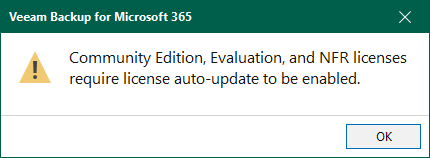
The Community Edition, Evaluation, and NFR, and NFR licenses require license auto-update to be enabled.
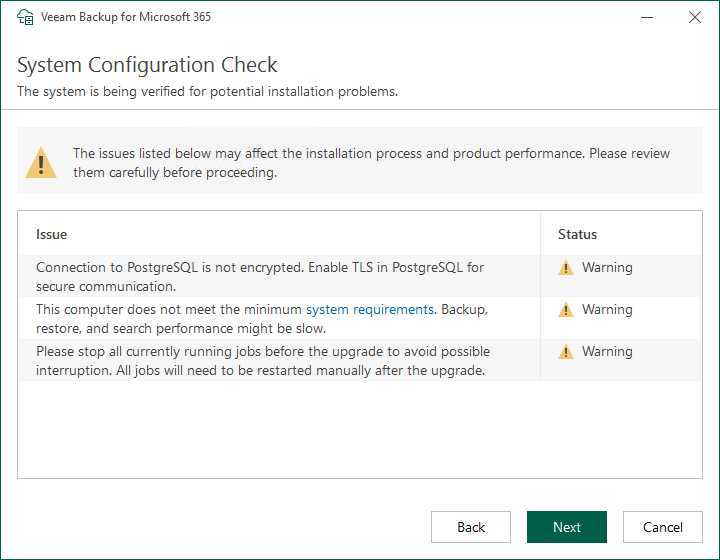
12.Please ensure the Veeam Backup for Microsoft 365 manager server meets the minimum system requirements.
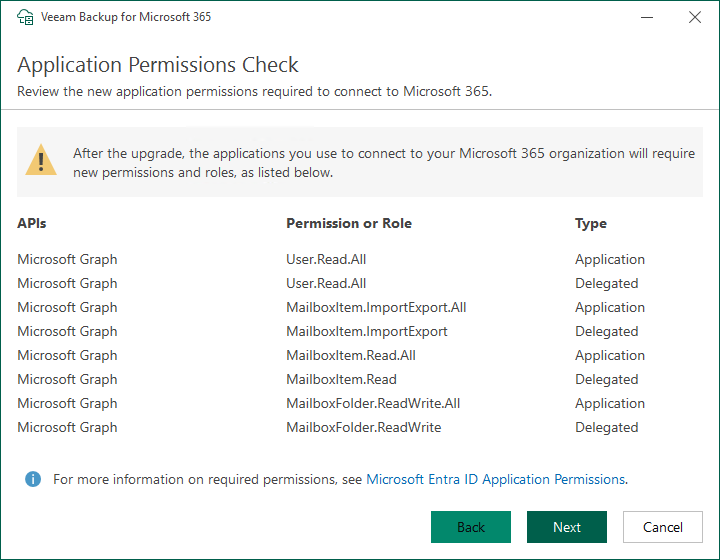
13.Review and update the new application permissions required to connect to Microsoft 365, click Next.
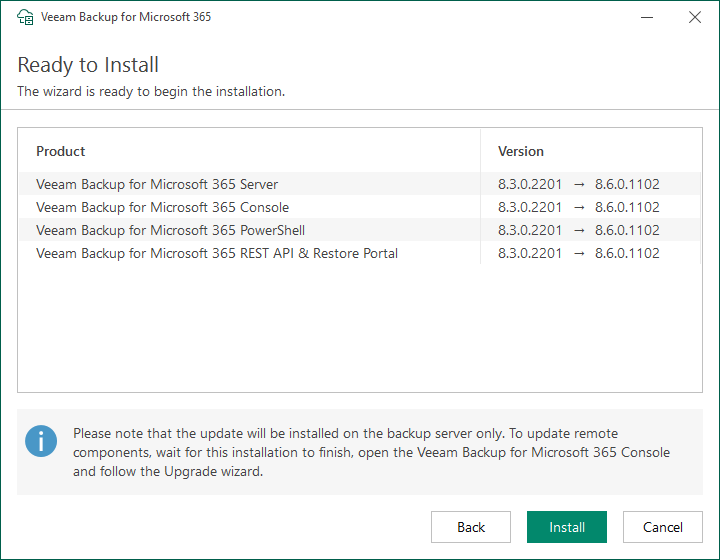
14.Click Install on the Ready to Install page.
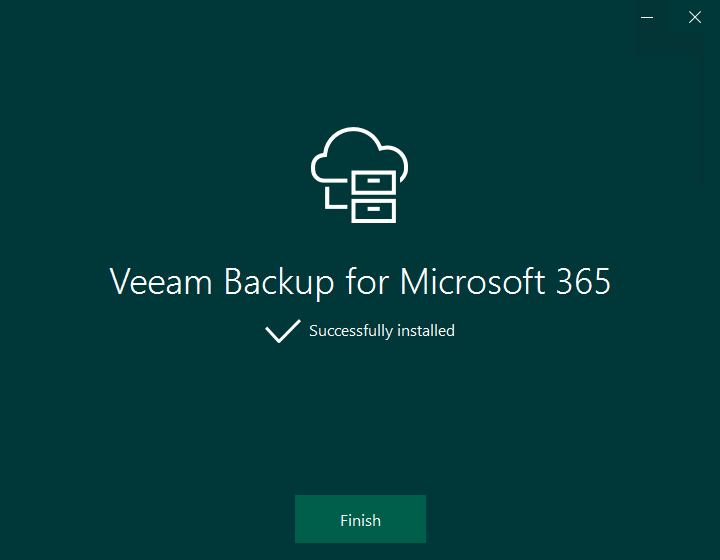
15.Click Finish on the Veeam Backup for Microsoft 365 Successfully installed page.
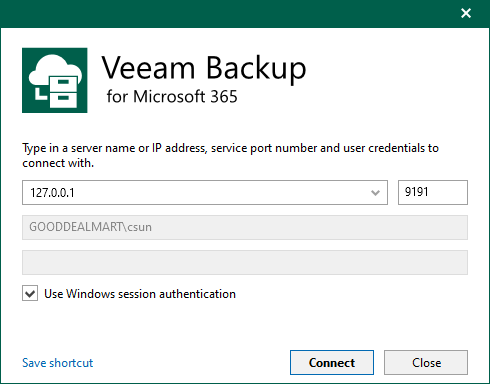
16.Open Veeam Backup for Microsoft 365 console and click Connect.
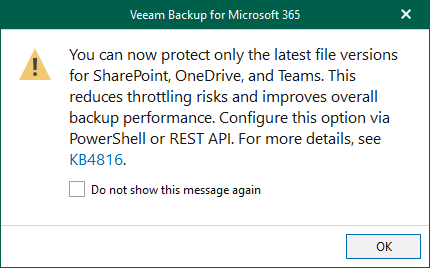
17.Click OK om the You can now protect only the latest file versions for SharePoint, OneDrive, and Teams warning message.
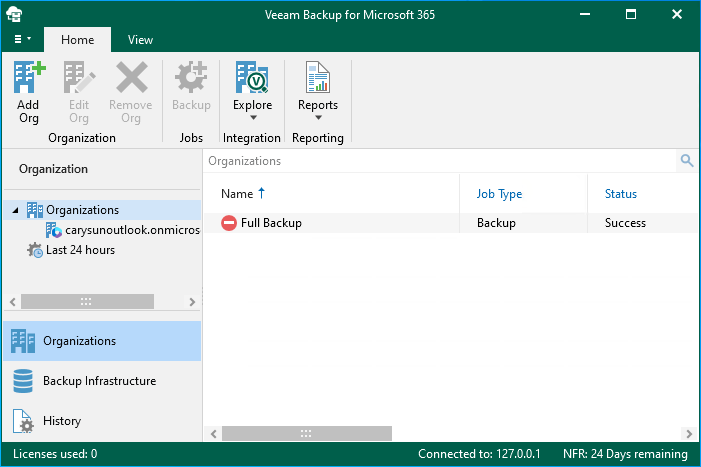
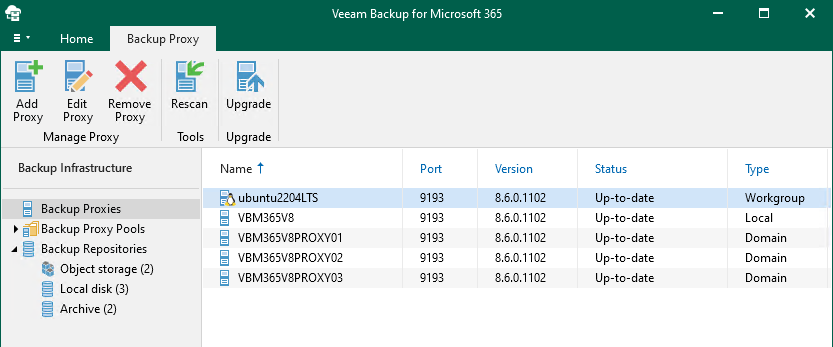
18.Select Backup Infrastructure on the Veeam Backup for Microsoft 365 Console.
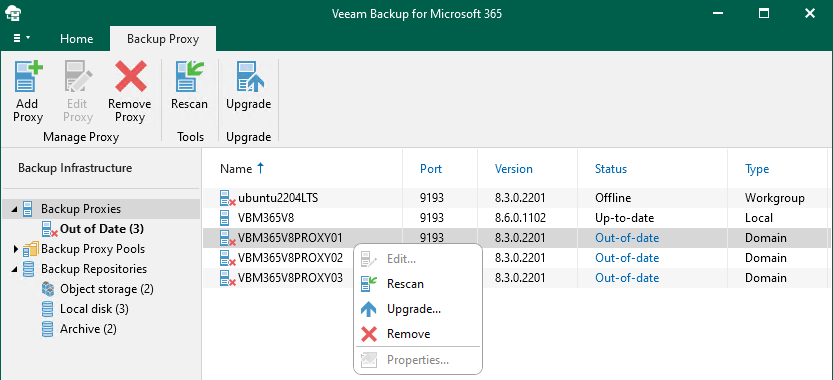
19.Right-click the out-of-date Proxy servers and select Upgrade.
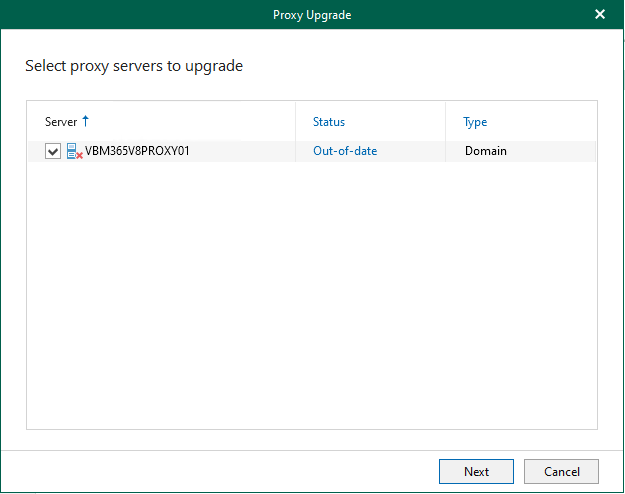
20.On the Upgrade page, select all servers and click Next.
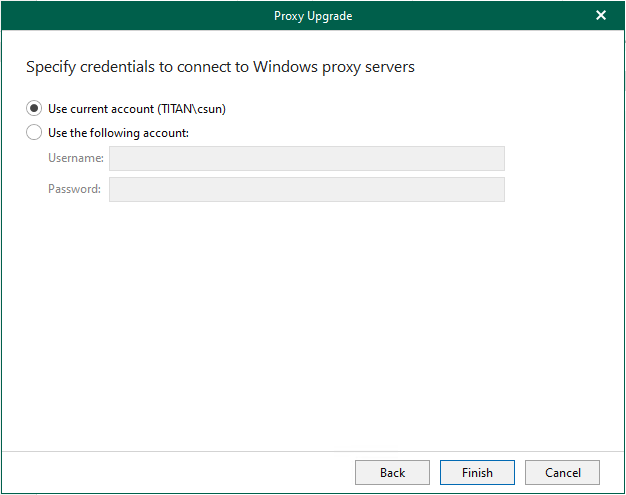
21.Click Finish on the Specify credentials to connect to proxy servers page.
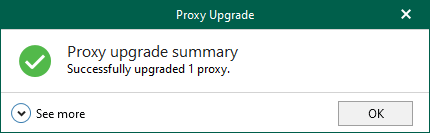
22.Ensure the Proxy Server was successfully upgraded, click OK.
23.Ensure all Proxy Servers have errors after the upgrade.
24.Select Organizations on the Veeam Backup for Microsoft 365 console.
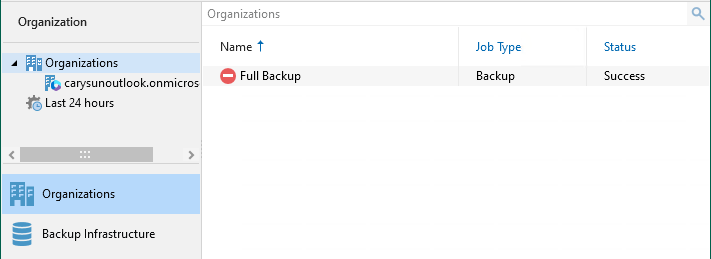
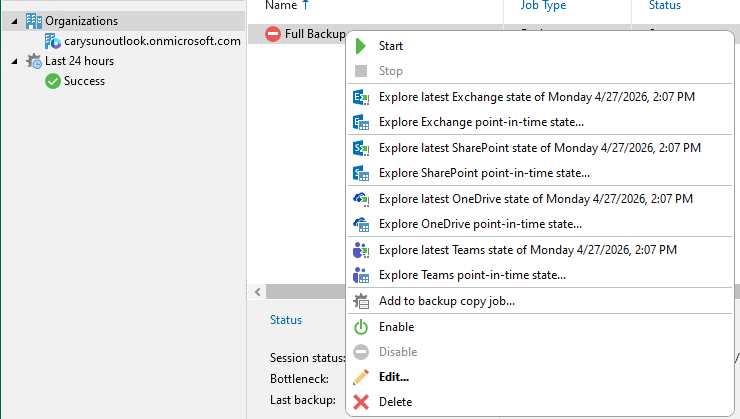
25.Right-click Jobs. Select Enable.
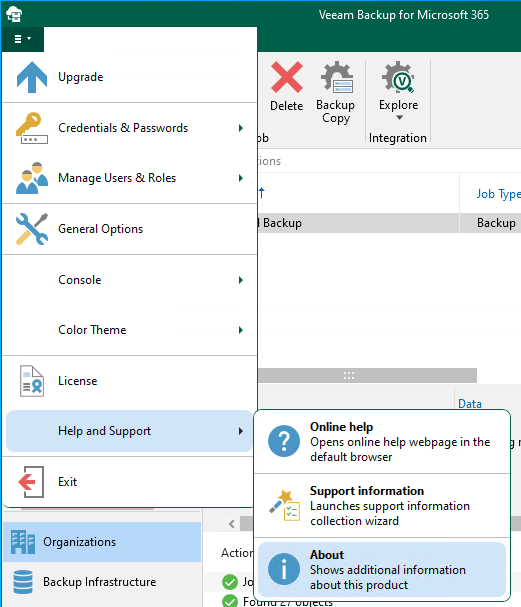
26.Verify the Veeam Backup for Microsoft 365 version from Veeam Backup for Microsoft 365 console (Help |Abut).
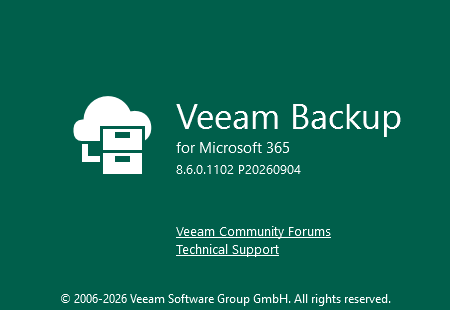
27.Ensure the version is 8.6.0.1102 P20260904.
28. Login to the machine if you are using REST API on a separate machine.
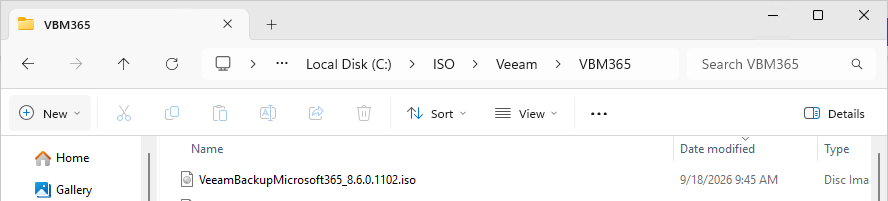
29.Mount Veeam Backup for Microsoft 365 v8.6 (VeeamBackupMicrosoft365_8.6.0.1102.iso) ISO image file.
30.Double-click Veeam.Setup.exe.
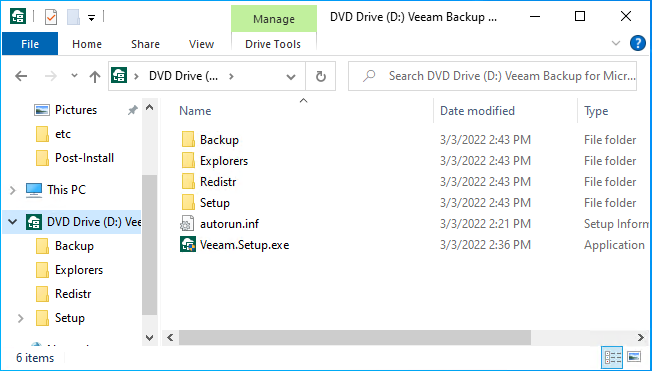
31.Click Yes on the User Account Control page.
32.Click Update on the Veeam Backup for Microsoft 365 page.
33.Ensure you don’t have any unsupported operating system and click OK.
34.Click I Accept on the License Agreement page.
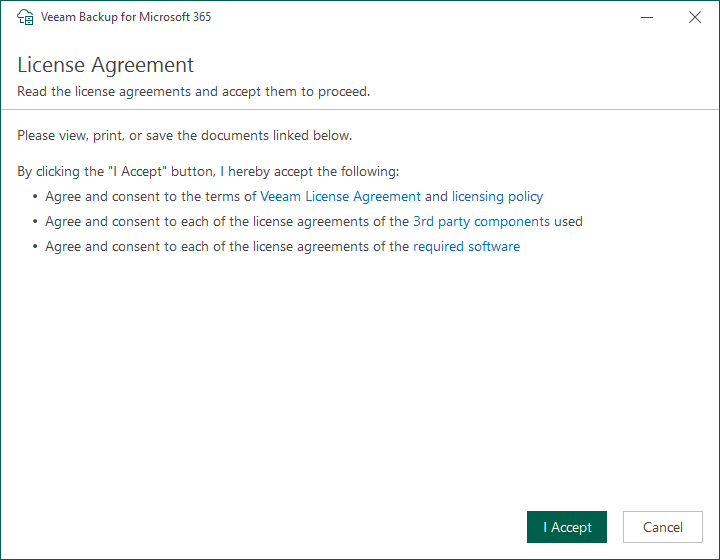
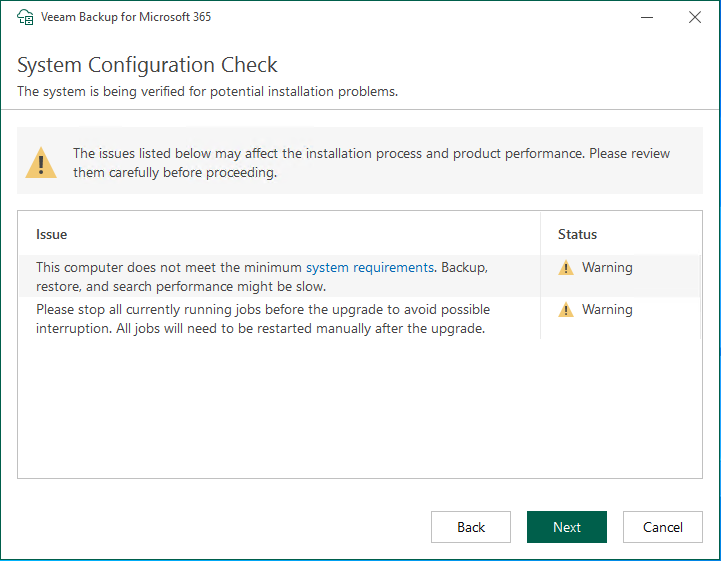
35.Please ensure the Veeam Backup for Microsoft 365 REST API machine meets the minimum system requirements.
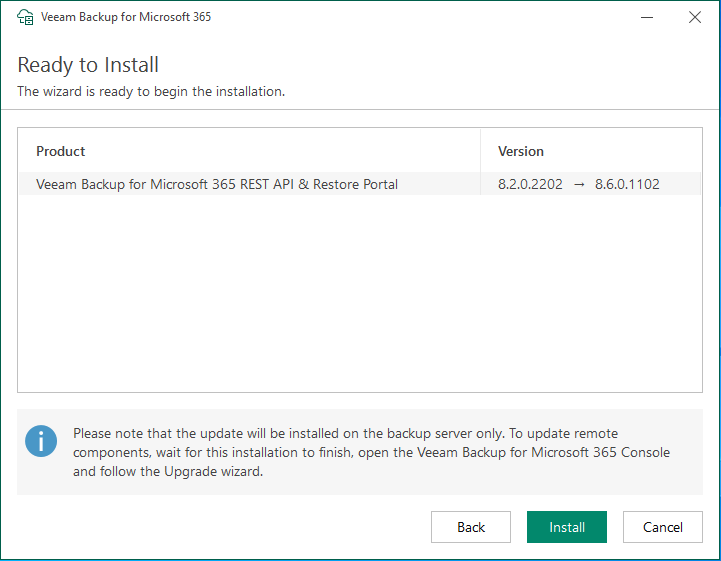
36.Click Install on the Ready to Install page.
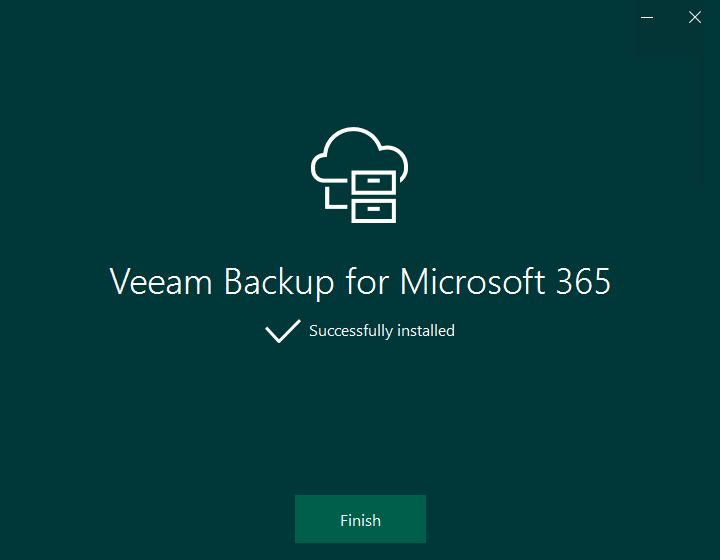
37.Click Finish on the Veeam Backup for Microsoft 365 Successfully installed page.
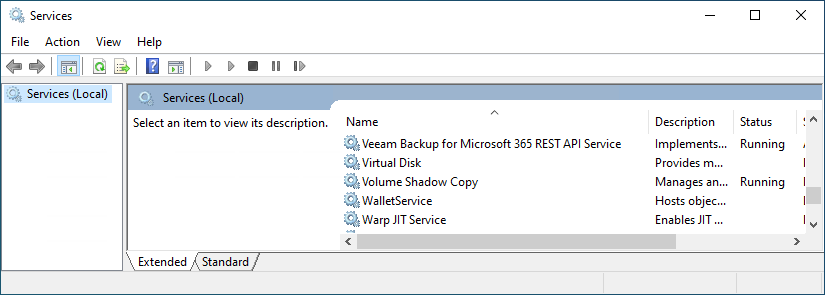
38.Check and ensure the Veeam Backup for Microsoft 365 REST API service is running.
I hope you enjoy this post.
Cary Sun
X: @SifuSun
Web Site: carysun.com
Blog Site: checkyourlogs.net
Blog Site: gooddealmart.com
Amazon Author: Amazon.com/author/carysun
About Post Author