
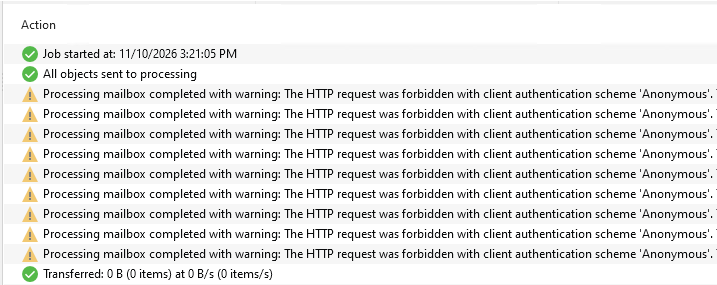
On March 27, 2026, it was verified that Microsoft has just released a patch to fix the way Exchange Online enforces access to Exchange Web Services (EWS). In the past, mailboxes could be accessed by EWS in some situations even if it wasn’t specifically enabled (i.e., $Null status). EWS must now be specifically enabled at the organization and mailbox levels in order for backups to be successful after Microsoft fixed this behaviour.
Run the steps below to connect to Exchange Online PowerShell and keep EWS enabled in your tenant.
1.Login to the Veeam Backup for Microsoft 365 management server or any machine.
2.Run the command below to load the Exchange Online PowerShell module.
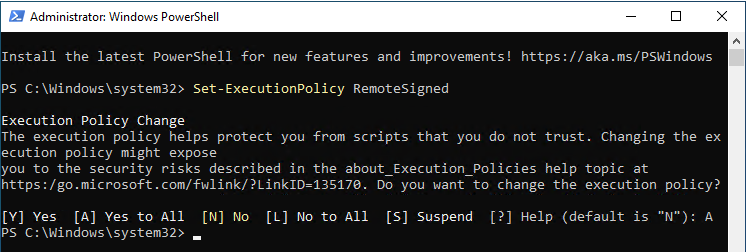
Set-ExecutionPolicy RemoteSigned
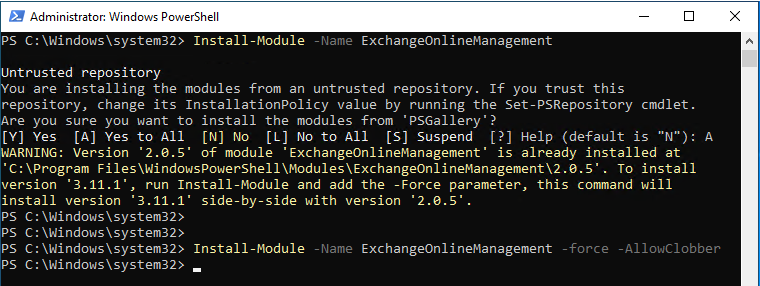
Install-Module -Name ExchangeOnlineManagement -Force -AllowClobber
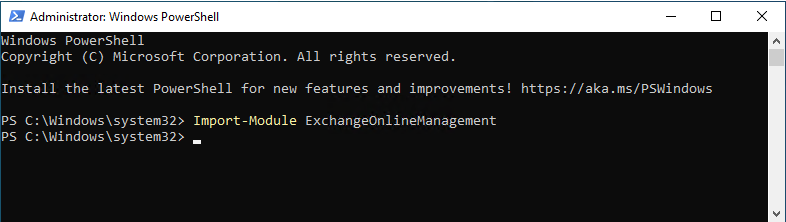
Import-Module ExchangeOnlineManagement
3.Run the command below to connect to Exchange Online PowerShell.
Connect-ExchangeOnline -UserPrincipalName "Your global admin account"
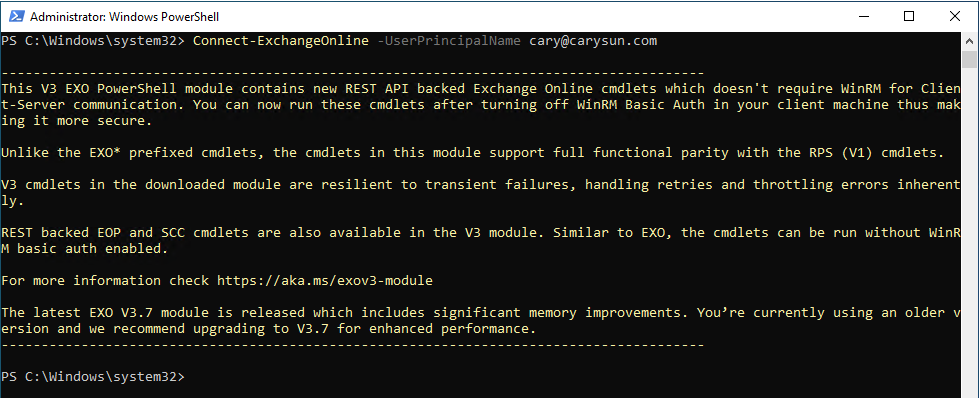
4.Run the command below to ensure the EwsEnabled Flag at the Tenant (Organization) Level.
Get-OrganizationConfig | Fl EwsEnabled
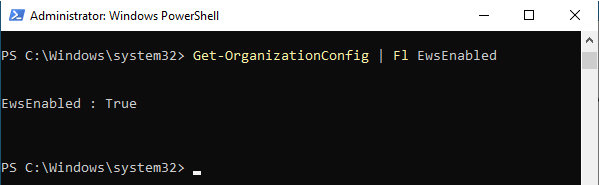
5.If the output is anything other than an explicit $true, run the command below to set the EwsEnabled Flag at the Tenant (Organization) Level.
6.Run the command below to ensure the EwsEnabled Flag at the User (Mailbox) Level.
Get-CASMailbox -ResultSize Unlimited | Where-Object { $_.EwsEnabled -ne $true } | Select-Object Identity, PrimarySmtpAddress, EwsEnabled
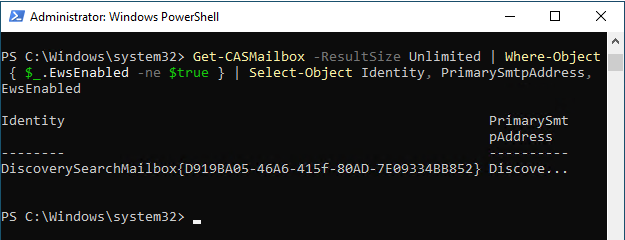
7.Any mailbox listed in the results from the previous step that needs to be backed up must have the EwsEnabled flag.
Run the command below to set the EwsEnabled Flag at the User (Mailbox) Level.
Set-CASMailbox mailbox@address.com -EwsEnabled $true
Note:
Replace mailbox@address.com with the email address of the user.
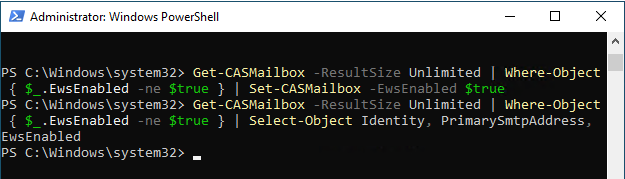
8.You can also run the command below to set the EwsEnabled flag to $true for all mailboxes.
Get-CASMailbox -ResultSize Unlimited | Where-Object { $_.EwsEnabled -ne $true } | Set-CASMailbox -EwsEnabled $true
Run below steps to review the Veeam Application ID and ensure the IDs are on the allow list. Veeam app registrations must be included so that backups can continue using EWS during the period before the Microsoft Graph transition is complete.
1.Login to Veeam Backup for Microsoft management server.
2.Open Veeam Backup for Microsoft 365 connect console.
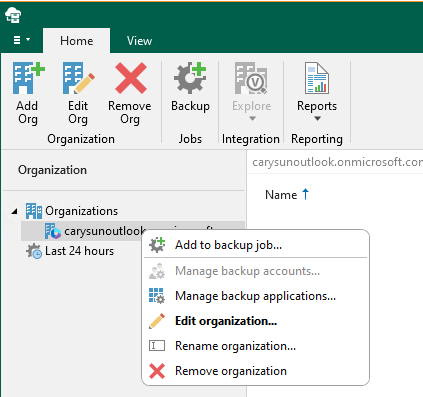
3.Open the Organizations view, right-click the Microsoft 365 organization, and select Edit Organization.
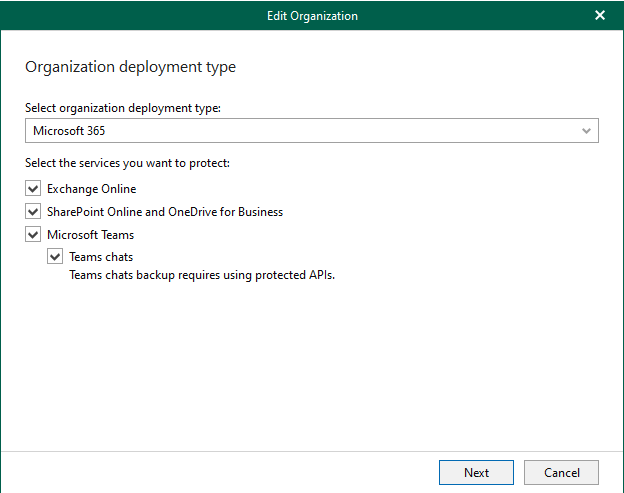
4.Click Next on the Organization deployment type page.
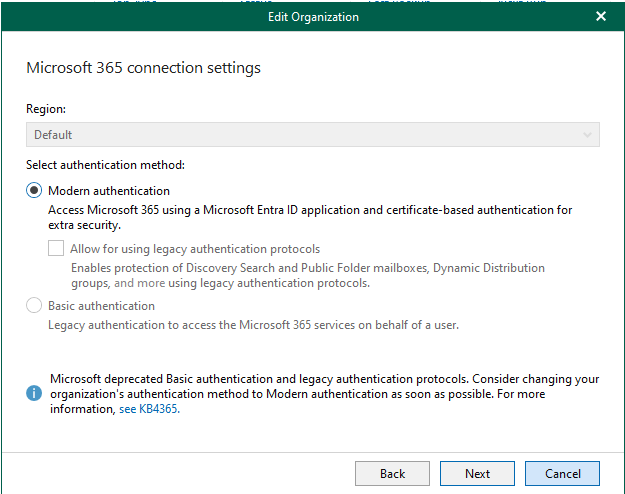
5.Click Next on the Microsoft 365 connection settings page.
6.Click Next on the Select how to connect the Microsoft 365 organization page.
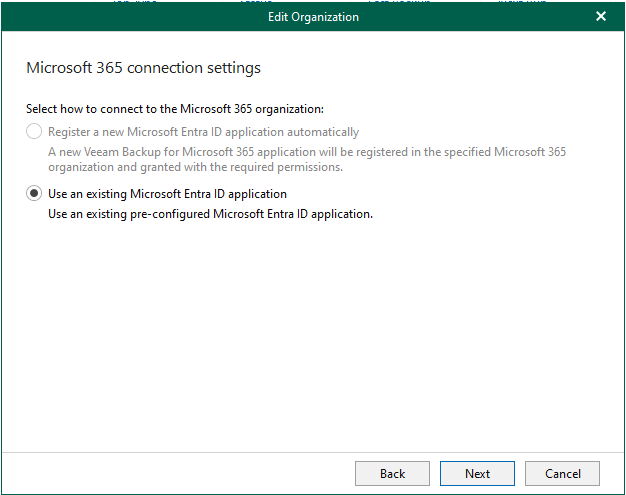
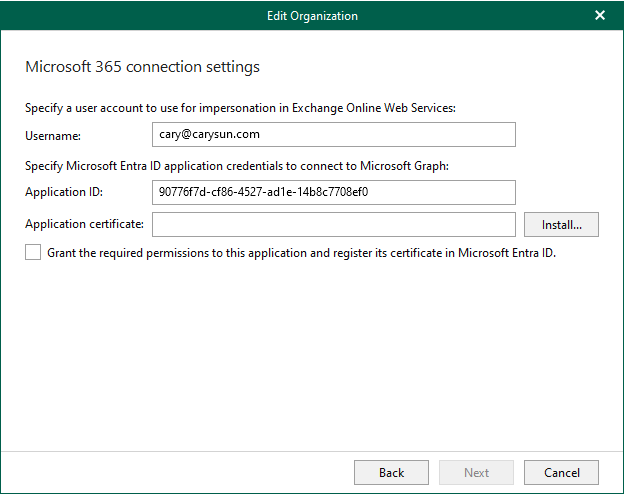
7.The Application ID is listed in the application settings. Take a note for the Application ID and click Cancel.
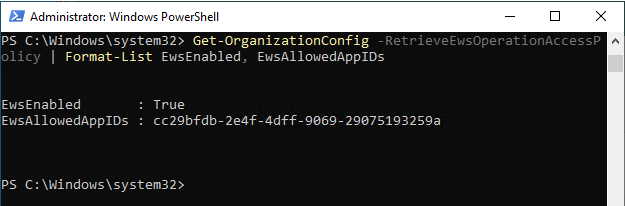
8.Run the command below against the Exchange Online tenant to check the current value of EwsAllowAppIDs
Get-OrganizationConfig -RetrieveEwsOperationAccessPolicy | Format-List EwsEnabled, EwsAllowedAppIDs
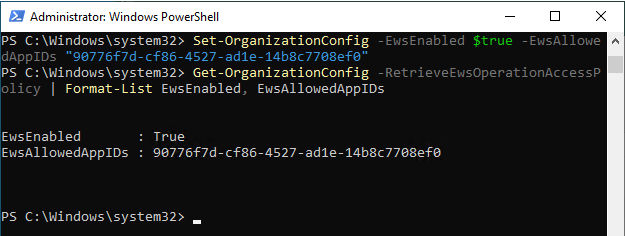
9.If the current value doesn’t include Veeam Application IDs, run the command below to add them.
Set-OrganizationConfig -EwsEnabled $true -EwsAllowedAppIDs "90776f7d-cf86-4527-ad1e-14b8c7708ef0"
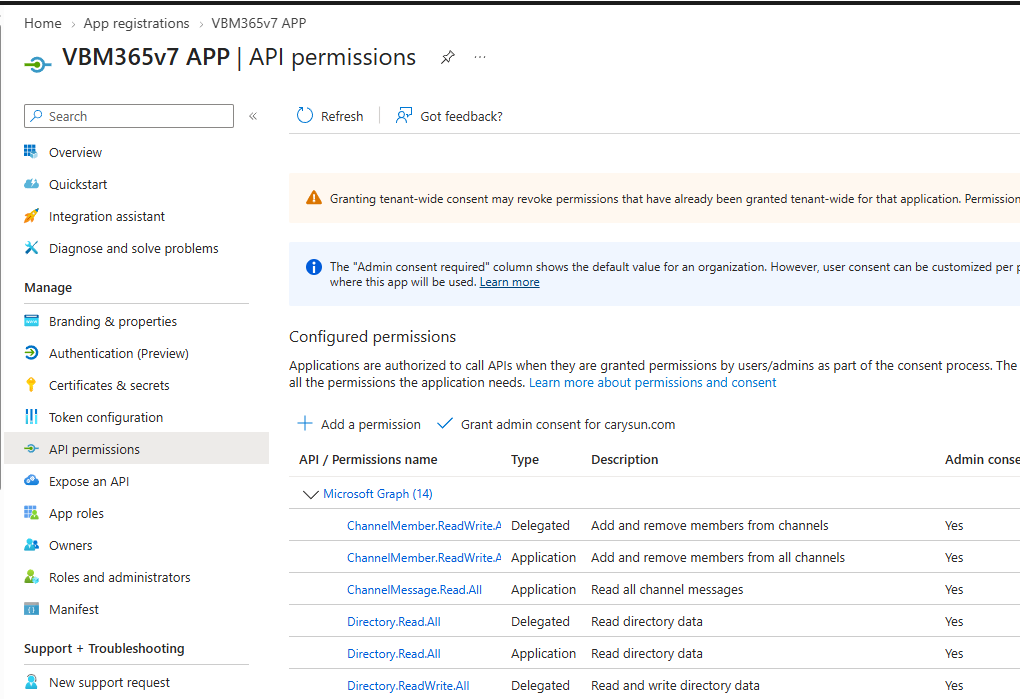
10.Login to Microsoft Azure portal, review and ensure the required Microsoft Graph permissions are assigned to your Veeam app registrations in Microsoft Entra ID.
The detail required permissions for backup is below link.
https://helpcenter.veeam.com/docs/vbo365/guide/ad_app_permissions_sd.html#permissions-for-backup
The detail required permissions for restore is below link.
https://helpcenter.veeam.com/docs/vbo365/guide/ad_app_permissions_sd.html#permissions-for-restore
11.The new values may take up to 24 hours to replicate and take effect.
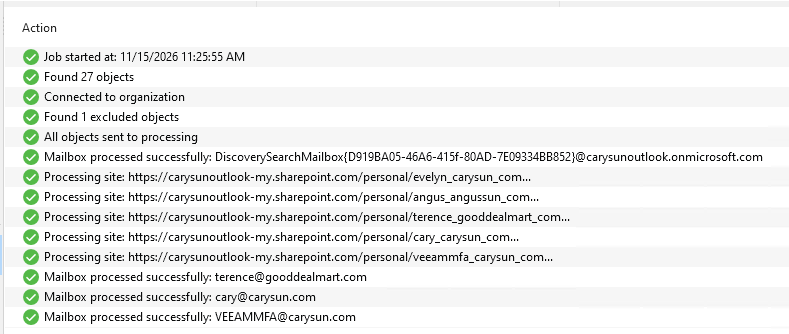
12.Re-check the backup job to ensure the errors are gone.
I hope you enjoy this post.
Cary Sun
X: @SifuSun
Web Site: carysun.com
Blog Site: checkyourlogs.net
Blog Site: gooddealmart.com
Amazon Author: Amazon.com/author/carysun
About Post Author